CapCut for Mac: Download, Install and Use (2026 Guide)
Yes, CapCut Works on Mac — Here’s the Full Picture
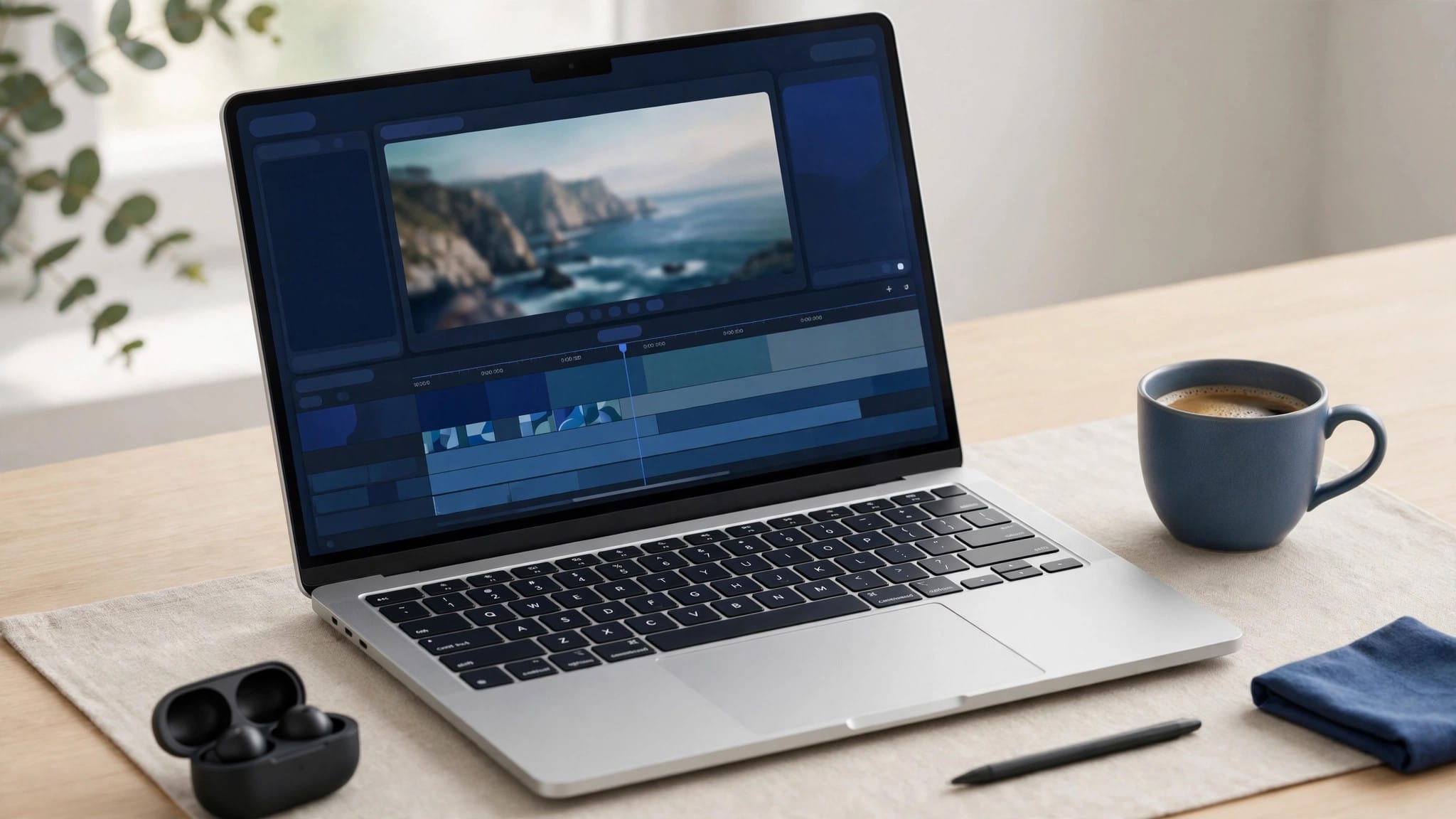
CapCut for Mac is real, official, and free: a native macOS app from ByteDance with the timeline editor, keyframes, effects, and auto captions you know from mobile — plus a bigger canvas, keyboard shortcuts, and proper multitrack muscle. This 2026 guide covers how to download and install it, what your Mac needs, and the honest differences from the mobile app.
How to Download CapCut for Mac
Method 1: Mac App Store (easiest)
Open the App Store → search “CapCut” → Get → Install. This is the official, auto-updating version. If CapCut doesn’t appear in your region’s App Store, use Method 2.
Method 2: Direct download from the official site
Go to capcut.com → Download → macOS. You get a .dmg file: open it, drag CapCut into Applications, done. Same official app, just without the App Store wrapper — useful when the App Store version lags behind or isn’t available in your region.
Avoid third-party “CapCut for Mac” downloads. The Mac app is free from official sources; random-site downloads are the classic malware vector. If a site asks you to pay for CapCut Mac or run a strange installer, leave.
System Requirements
macOS: 10.15 (Catalina) or later — Ventura/Sonoma/Sequoia all fine. Chip: both Apple Silicon (M1/M2/M3/M4) and Intel Macs supported; Apple Silicon runs noticeably smoother. RAM: 8 GB minimum, 16 GB recommended for 4K work. Storage: ~1 GB for the app plus generous free space for cache and projects (video work eats gigabytes — keep 20 GB+ free). Display: any Mac display works; a larger external monitor transforms the timeline experience.
Installing — Step by Step
Step 1: Download via the App Store or the .dmg from capcut.com. Step 2: If using the .dmg: open it, drag CapCut to Applications, eject the disk image. Step 3: Launch from Applications or Spotlight. First launch may ask for permissions — grant Files and Folders access (so it can import your media) and Screen Recording only if you plan to record your screen. Step 4: Sign in with the same account you use on mobile (TikTok, Google, or email) — your cloud projects, templates, and Pro subscription sync across devices automatically.
CapCut Mac vs Mobile — Honest Differences
What’s better on Mac: the timeline — bigger, more tracks visible, precise trimming with a mouse, keyboard shortcuts (Space to play, Cmd+B to split, Cmd+Z undo) that make editing 2–3x faster once learned. Multitasking: reference footage, scripts, and assets open beside the editor. Export: faster rendering, more format control.
What’s better on mobile: templates — the mobile template ecosystem is vastly bigger and trend-faster. Capture: shoot and edit in one device, no transfers. Speed for short content: for a 15-second reel, mobile is genuinely faster end-to-end.
What’s missing/worse on Mac: some mobile-first AI effects arrive on Mac later. The Mac app occasionally lags a version behind on trendy effects. Cloud sync hiccups happen — if a mobile project won’t open on Mac, check both apps are updated.
The verdict: edit short trendy content on mobile; cut anything over 2 minutes, multi-track projects, or precision work on Mac. Most serious creators use both, synced via one account.
Essential Mac Keyboard Shortcuts
Learn these five and you’ll feel pro in a day: Space play/pause · Cmd+B split clip · Cmd+Z / Shift+Cmd+Z undo/redo · Delete remove selected · Cmd+E export. Next level: C blade tool, V select tool, + / − zoom timeline, ← / → frame step, Shift+← / → 1-second jump. Print them, stick them by your monitor, and thank yourself in a week.
CapCut Mac vs Other Mac Editors
vs iMovie (free): CapCut wins on effects, templates, captions, and trend-readiness; iMovie wins on dead-simple stability for family videos. If you’re under 30 and post online, CapCut. If you’re archiving birthdays, iMovie.
vs Premiere Pro ($$$): Premiere wins on professional depth — multicam, Lumetri color, ecosystem. CapCut wins on speed, price (free), and fun. Most creators don’t need Premiere until clients demand it.
vs DaVinci Resolve (free): Resolve wins on color grading and professional credibility; CapCut wins on ease and social-first features. Learn both eventually — CapCut for output, Resolve for craft.
vs Final Cut Pro ($299): Final Cut wins on Mac optimization and its devoted magnetic-timeline fans; CapCut wins on being free and cross-platform with your phone.
Optimizing CapCut on Mac
Preview at 1/2 quality for buttery timeline scrubbing (export stays full quality). Keep cache on internal SSD — Settings → move cache off external drives. Close the browser — Chrome eats the RAM your preview needs. Update regularly — Mac builds get meaningful performance patches. Restart the app when previews get glitchy; CapCut’s Mac port has mild memory-leak manners — a fresh launch fixes most weirdness instantly.
Troubleshooting Mac Install Issues
“CapCut is damaged and can’t be opened.” macOS Gatekeeper vs. the .dmg download. Fix: right-click the app → Open (not double-click) → confirm. Or re-download from the App Store instead.
“Not available in your region.” Some App Stores don’t list CapCut. Use the direct .dmg from capcut.com — region-free.
“It runs slowly on my Intel Mac.” Lower the preview resolution (preview window → 1/2 or 1/4 quality — doesn’t affect export), close Chrome’s 47 tabs, and keep projects on internal SSD, not external drives.
“My phone projects won’t sync.” Both apps must be signed into the SAME account and updated to recent versions. Cloud space limits apply on the free tier — full cloud storage blocks syncing.
“Export fails / crashes.” Usually a corrupt effect or transition in the timeline. Duplicate the project, then remove effects one by one until export works — the last removed was the culprit.
FAQs
Is CapCut for Mac free?
Yes — the Mac app is free, same as mobile. CapCut Pro (subscription) unlocks premium effects on Mac too, synced with your mobile Pro status.
Is there a CapCut Mod APK for Mac?
No — APKs are Android-only and there’s no “mod” for macOS. Mac users wanting premium features free should know the trade-off: the official app is the only safe Mac option. (Android users: see the CapCut Mod APK.)
Can I use CapCut on Mac without downloading?
CapCut has a web version (capcut.com web editor) that runs in the browser — handy on borrowed machines, though less powerful than the desktop app.
Does CapCut Mac support plugins?
No plugin ecosystem like Premiere — CapCut is self-contained. Its built-in effects library is the toolkit.
M1/M2/M3 vs Intel — does it matter?
Yes. Apple Silicon Macs run CapCut dramatically smoother — a faster, smoother, cooler-running editing experience overall. On Intel, stick to 1080p timelines for maximum comfort.
Can I transfer projects between iPhone and Mac?
Yes, via cloud sync when signed into the same account on both devices. Some mobile-only effects may not translate — CapCut warns you on open.
Conclusion
CapCut for Mac is the same beloved editor with room to breathe: download it free from the App Store or capcut.com, give it 8 GB RAM and some disk space, learn the five core shortcuts, and sign in to sync with mobile. Use mobile for trends, Mac for craft — together they’re the complete CapCut workflow. Download it once, learn the shortcuts, and your phone edits will start looking like they were carefully cut on a workstation — because half of them were.