
Trending CapCut Transitions in 2026 You Should Try
Why Transitions Decide Whether People Keep Watching
Open any viral edit and watch the first three seconds frame by frame. The cuts are never just cuts — something whips, glitches, zooms, or melts from one clip to the next. That is not decoration. On short-form video, trending capcut transitions are the difference between a viewer watching your edit and swiping past it.
Transitions do two jobs: they hide the edit point so the video feels continuous, and they add a little burst of visual energy exactly when attention is about to dip. CapCut ships with hundreds of built-in transitions, and new ones trend every few months as creators invent fresh styles. This guide rounds up the transition styles actually trending in 2026, shows you how to recreate each one, and explains when to use them — and when to hold back.
How to Add a Transition in CapCut (Quick Refresher)
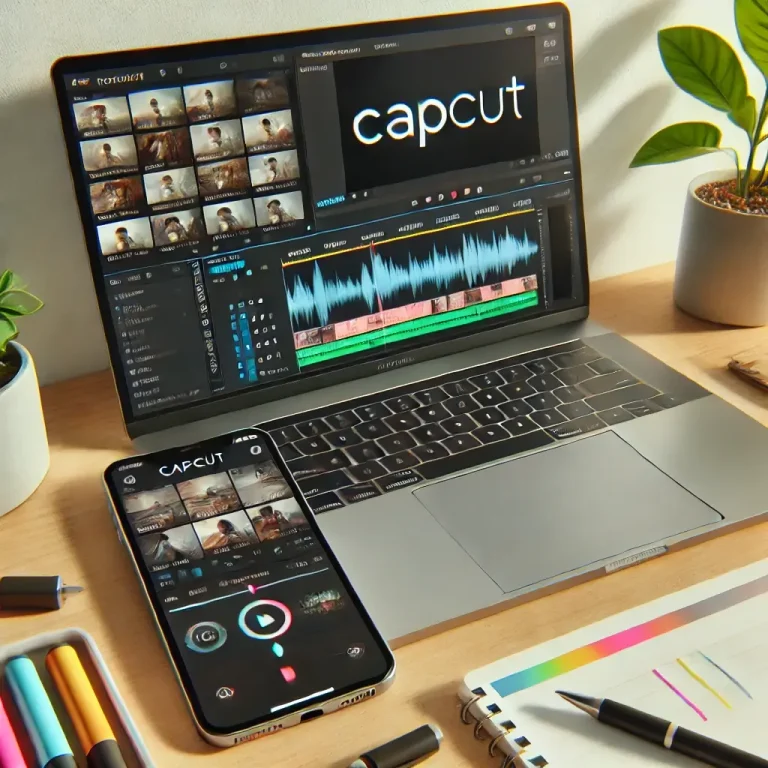
Before the trends, the 10-second basics. On mobile: place two clips next to each other on the timeline, tap the small white square icon between them, and pick a transition from the menu. Drag the edges of the transition icon to make it longer or shorter.
On PC: the transition icon sits between clips the same way — click it to open the transitions panel.
If the icon never appears, see our full guide on how to add transitions in CapCut — it also covers the five fixes for transitions not showing at all.
10 Trending CapCut Transitions in 2026
1. Velocity zoom (the whip-pan)
The single most-used transition in viral edits right now. The frame blurs and whips sideways into the next clip, usually synced to a beat drop. How to do it: use the Camera In/Out or Pull In transition set to 0.3–0.5 seconds, or build it manually with keyframes — zoom from 100% to 130% across the last 5 frames of clip one, and reverse it on clip two. Our CapCut keyframes tutorial walks through the manual version, which looks smoother than the preset.
2. Glitch / RGB split
The frame tears into red-green-blue color channels for a few frames, then snaps back together. Perfect for tech content, gaming edits, and beat drops. How to do it: CapCut’s Glitch category has several ready-made options — RGB Split and Digital Glitch are the cleanest. Keep it under 0.4 seconds; longer glitches give viewers a headache.
3. Smooth mask wipe
A shape — a circle expanding, a diagonal line sweeping — wipes the old clip away. It looks expensive because it is the same technique used in professional music videos. How to do it: this one is manual. Put clip two above clip one on the timeline, add a Mask to clip two, and keyframe the mask expanding across the cut. Circle and linear masks are in the mask menu on both mobile and PC.
4. Spin / swirl
The frame spins like a vortex into the next clip. Huge in dance and transition-challenge videos. How to do it: the Spin transition preset, or keyframe rotation from 0° to 180° across the cut for a custom feel. Add a slight zoom at the same time and it looks twice as smooth.
5. Light leak / flash
A warm burst of light washes over the cut — the classic travel-vlog transition, still trending because it works on literally any footage. How to do it: use Light transitions, or overlay a light-leak effect from CapCut’s effects library at 50% opacity for two or three frames over a plain cut.
6. Morph / seamless object pass
You walk behind a pole, a door, or your own hand, and emerge in a different outfit or location. The “object” hides the cut. How to do it: no preset needed — film clip one ending as the object covers the lens, and clip two starting as it uncovers. Line up the motion and it looks like magic. This is the highest-effort transition on this list and the most impressive.
7. Shake / camera jolt
The whole frame jolts on the beat, often combined with a zoom. A staple of velocity and Phonk edits. How to do it: CapCut’s Shake transitions, or add the Camera shake video effect for 0.3 seconds over a hard cut. Sync the jolt exactly to the beat — half a beat off and it looks like a mistake.
8. Blur dissolve
Clip one blurs out, clip two blurs in — softer and more modern than the old cross-dissolve. Great for aesthetic edits, vlogs, and slideshows. How to do it: the Blur transition preset, 0.5–0.8 seconds. It is forgiving, which makes it perfect for beginners.
9. AI transitions
CapCut’s newer AI-powered transitions analyze your two clips and generate a morphing bridge between them. Results vary — sometimes stunning, sometimes weird — but when they hit, they look like nothing else on this list. How to do it: look for the AI tab in the transitions panel (mobile app, updated version). Generate, preview, and keep the ones that work.
10. Match-cut zoom (the “infinite zoom”)
The end of clip one and the start of clip two share a similar shape or motion, and a zoom carries you through. Think: zooming into a coffee cup, cutting, and pulling out of a car wheel. How to do it: fully manual — plan it while filming, then add a 0.4-second zoom transition over the cut. The filming matters more than the editing here.
How to Choose the Right Transition
Trends are a starting point, not a rulebook. Match the transition to the video:
Match the energy. Fast music and quick cuts want whip-pans, shakes, and glitches. Slow, aesthetic footage wants blur dissolves, light leaks, and mask wipes.
Match the beat. In music-driven edits, transitions should land on beat drops and snare hits, not drift between them. Turn on CapCut’s beat markers (Audio → Beats → Create automatically) and snap your transitions to the markers.
One style per video. The biggest beginner mistake is using seven different transitions in a 15-second video. Pick one or two and repeat them — consistency looks intentional, variety looks random.
Less is more for talking content. Tutorials, reviews, and storytimes need clean cuts or soft dissolves. A glitch transition in the middle of an explanation just distracts.
Where to Find More Transitions
Beyond the built-in panel, two sources are worth knowing. CapCut’s template library is full of edits whose transitions you can study frame by frame — find a trending edit, and rebuild its transitions yourself. Our CapCut templates hub explains how to find and import them.
Second, the effects library: many “transitions” in viral edits are actually video effects (shake, blur, light leaks) placed over a plain cut for a few frames. Effects give you finer control than presets and never look generic.
FAQs
What is the most trending CapCut transition right now?
The velocity whip-zoom is the most-used transition in viral short-form edits in 2026, followed by glitch/RGB-split effects on beat drops. Both are covered step by step above.
Are CapCut transitions free?
Yes — every built-in transition in CapCut is free on mobile, PC, and web, with no watermark. Some AI transitions may require an internet connection to generate.
Why do my transitions look choppy?
Three usual causes: the transition is too long for the clip (shorten it), the two clips have very different motion or brightness (pick more similar shots), or you are previewing at low playback quality (export a test — it often looks fine in the final render).
Can I save a custom transition to reuse?
CapCut does not have a one-tap “save transition” button, but you can duplicate a project containing your keyframed transition and swap in new clips — effectively the same thing. Template creators do exactly this.
How many transitions should a 15-second video have?
For music-driven edits, one transition per beat drop or scene change — usually 3 to 6. For talking videos, zero to two. When in doubt, use fewer.
Conclusion
The transitions trending in 2026 — whip-zooms, glitches, mask wipes, spins, and AI morphs — all share one trait: they serve the rhythm of the video instead of showing off. Learn two or three of them properly, sync them to the beat, and resist the urge to use all ten in one edit.
Ready to go deeper? Our guide on how to add transitions in CapCut covers the mechanics and fixes, and the velocity edit tutorial teaches the speed-ramping style these transitions pair best with.