How to Use CapCut Templates: Find, Import and Fix Link Problems
What Are CapCut Templates (And Why Everyone Uses Them)?
A CapCut template is a pre-built editing project shared by another creator: the cuts, speed ramps, transitions, effects, and timing are already done — you just swap in your own clips and photos. It’s why a complex velocity edit or a perfectly beat-synced montage takes three minutes instead of three hours.
But templates have their own learning curve: finding good ones, importing them from links, and fixing the all-too-common “template not working” errors. This guide covers how to use CapCut templates from start to finish — find, import, customize, troubleshoot.
How to Find CapCut Templates
Inside the app (most reliable)
Open CapCut → Templates at the bottom → search by style (“velocity”, “birthday”, “slow motion”, “photo dump”) or by trend name. Sort by most used — high use counts mean proven timing and working links. Preview with sound on before committing.
From TikTok and Instagram links
Creators post edits with a “Try this template” link. Tap it → CapCut opens → Use template. These links are the freshest source of viral templates — but they expire, get region-locked, or break when the creator deletes the original.
From template roundup sites
Sites (like ours) collect working templates by category. Our templates hub and new-trend roundup track what’s currently working, so you’re not chasing dead links.
How to Import and Use a Template — Step by Step
Step 1: Open the template. In-app: tap it in the Templates tab. From a link: tap the link, confirm it opens in CapCut.
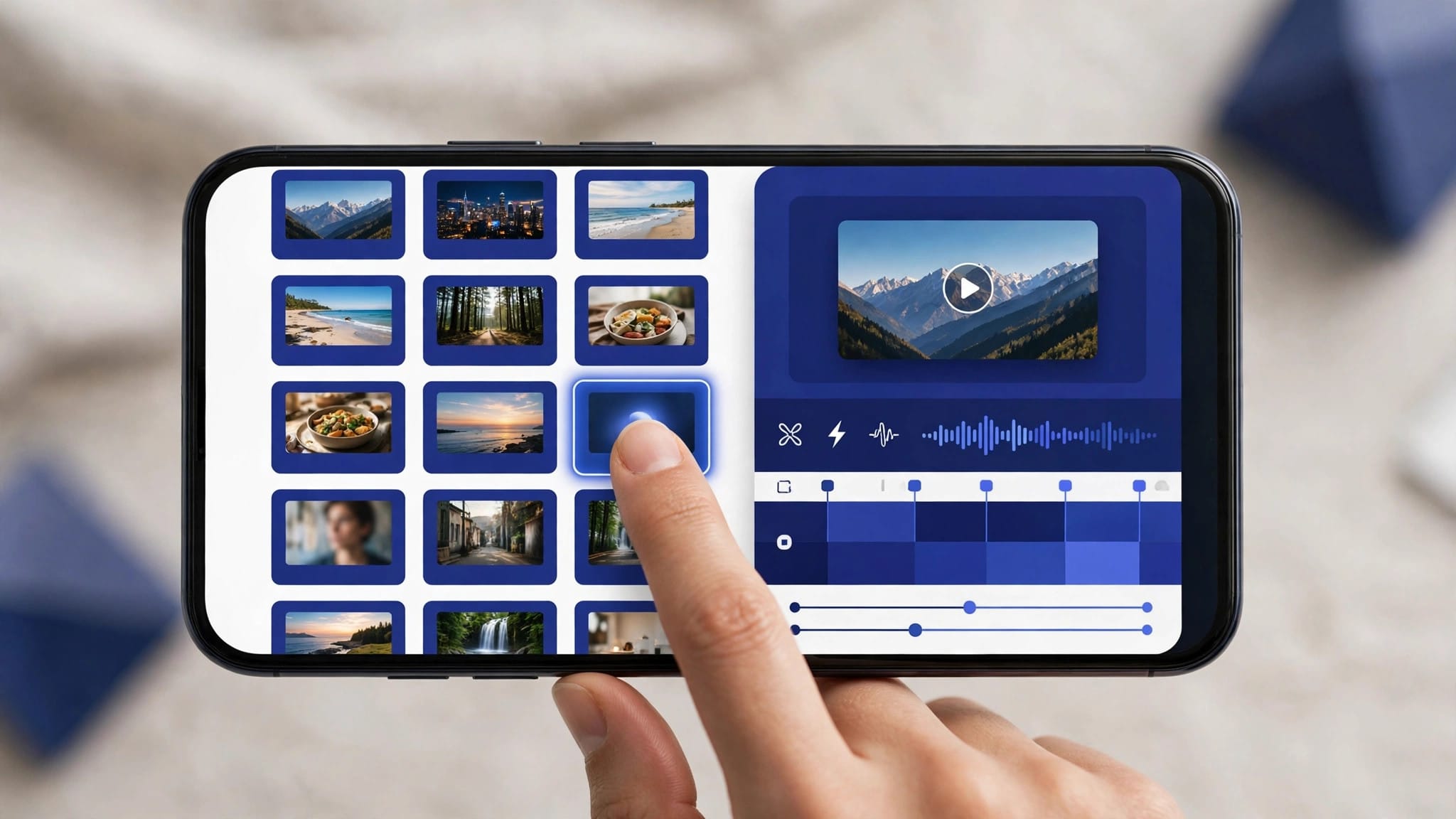
Step 2: Tap “Use template”. CapCut loads the project and shows you the placeholder slots — small thumbnails representing each clip or photo position, usually 3–12 of them.
Step 3: Replace each placeholder. Tap a slot → choose your clip or photo from your camera roll. This is the whole skill: the template provides timing, you provide content. Pick clips that match the template’s energy (guide: choosing clips for templates).
Step 4: Trim inside the slots. Each slot has in/out points — adjust them so your clip’s best moment fills the slot. The template’s effects were timed for specific slot lengths; don’t fight them, fit into them.
Step 5: Preview the full edit. Watch it twice: once for timing, once pretending you’re a stranger. If a clip feels wrong, swap it — one weak clip ruins a template.
Step 6: Export. 1080p is the standard. Done.
Customizing Templates (So You Don’t Look Like Everyone Else)
Change the audio. The fastest differentiator. Keep the template’s timing but swap in your song — matched for energy and roughly BPM.
Reorder or drop slots. You don’t owe the template all its slots. Fewer, better clips win.
Adjust intensity. Post-apply, select clips and tweak speed curves, effect strength, or transition duration. A 20% dial-back often looks more premium than the default max-energy version.
Add your text style. Your font, your captions, your name — one personal text layer brands the edit.
Grade it yours. Apply your usual filter/adjustment across all clips for cohesion.
Saving and Organizing Templates
You’ll collect dozens of templates — organize them or lose them. Bookmark aggressively: tap the bookmark icon on every template you like, even if you don’t need it now. Trends cycle; today’s saved template is next month’s viral format. Name your collections: CapCut lets you organize saved templates — make collections by purpose (birthdays, velocity, photo dumps, client work) so you’re not scrolling endlessly when a project lands. Prune quarterly: delete templates you never used. A curated collection of 20 beats a hoard of 200.
Pro habit: when you see a viral edit and can’t find its template, screen-record 10 seconds of it. Later, search its style in-app — or rebuild it manually. That screen recording is your reference.
Creating and Sharing Your Own Templates
Flip the script: publish your edits as templates and let others use them. In CapCut, open a finished project → Share as template (creator account requirements apply — follower minimums change, check current rules). Why bother? Template creators build massive followings — every use credits you, and viral templates drive profile traffic that dwarfs regular posts. What makes a template shareable: clean slot structure (obvious placeholders), universal timing (works with anyone’s clips), one striking signature move (the thing people remember), and a good demo video (your original edit IS the advertisement). The template economy rewards generosity: the more usable your template, the further your name travels.
Template Link Not Working? Every Fix
This is the #1 template frustration. Work through these in order:
Fix 1: Search the name in-app. Links die; the template usually survives in CapCut’s library under the same or similar name. Copy the template’s name from the dead link page and search it in the Templates tab.
Fix 2: Check your region/VPN. Some templates are region-locked. If a link works for a friend abroad but not you, that’s why. A VPN set to the US usually resolves it.
Fix 3: Update CapCut. Old app versions can’t open templates built with newer effects. Update, retry.
Fix 4: Clear CapCut’s cache. Settings → Clear cache. Corrupted template data causes mysterious failures.
Fix 5: The “template not available” error. The creator deleted it or set it private. It’s gone — find an alternative with the same style via in-app search.
Fix 6: “Need Pro” blocks. The template uses Pro-only effects. Either replace those effects after applying, or use the modded CapCut with Pro unlocked.
Template Types Worth Knowing
Beat sync templates — cuts pre-timed to music (full guide). Velocity templates — speed ramps done for you (full guide). Slow-mo templates — smooth slow motion curves (roundup). Photo templates — dumps and slideshows (roundup). Birthday templates — occasion edits (roundup). Learn one type deeply and the rest feel familiar.
FAQs
How do I get a CapCut template from a link?
Tap the link → it opens in CapCut → tap “Use template”. If the link is dead, search the template’s name in the Templates tab.
Why do CapCut template links stop working?
Creators delete templates, links expire, regions lock, or app updates break compatibility. In-app search is the durable path — links are ephemeral.
Are CapCut templates free?
Mostly yes. Some use Pro-only effects, which you can swap out or unlock via the modded version.
Can I edit a template after using it?
Completely — it becomes a normal project. Change timing, effects, audio, text, everything.
How do I save a template for later?
Tap the bookmark icon on any template in the Templates tab. Your saved collection lives in your profile area.
Can I share my own edit as a template?
Yes — CapCut lets creators publish their projects as templates (account requirements apply). It’s how template creators build followings.
Conclusion
Templates are CapCut’s superpower: find them in-app (most reliable), import with one tap, fill slots with clips that match the energy, customize the audio and text so it’s yours, and work the fix list when links die. Master this loop and you’ll produce in minutes what used to take hours — then spend the saved hours on the taste that makes edits actually good. Bookmark this guide; the next time a template link fails at midnight before a deadline, the fix list will save you absolutely every single time.