CapCut Tutorial for Beginners: Edit Your First Video Step by Step
Your First Edit in 20 Minutes
Never opened CapCut? Perfect — this CapCut tutorial for beginners takes you from a blank project to a finished, exported video in about 20 minutes. No jargon, no assumed knowledge. By the end you’ll know the five core skills every CapCut edit uses: trimming, text, music, effects, and exporting.
Open CapCut and follow along right now. (On desktop? The steps are nearly identical — see our CapCut for Mac guide for the desktop specifics.)
Step 1: Start a New Project
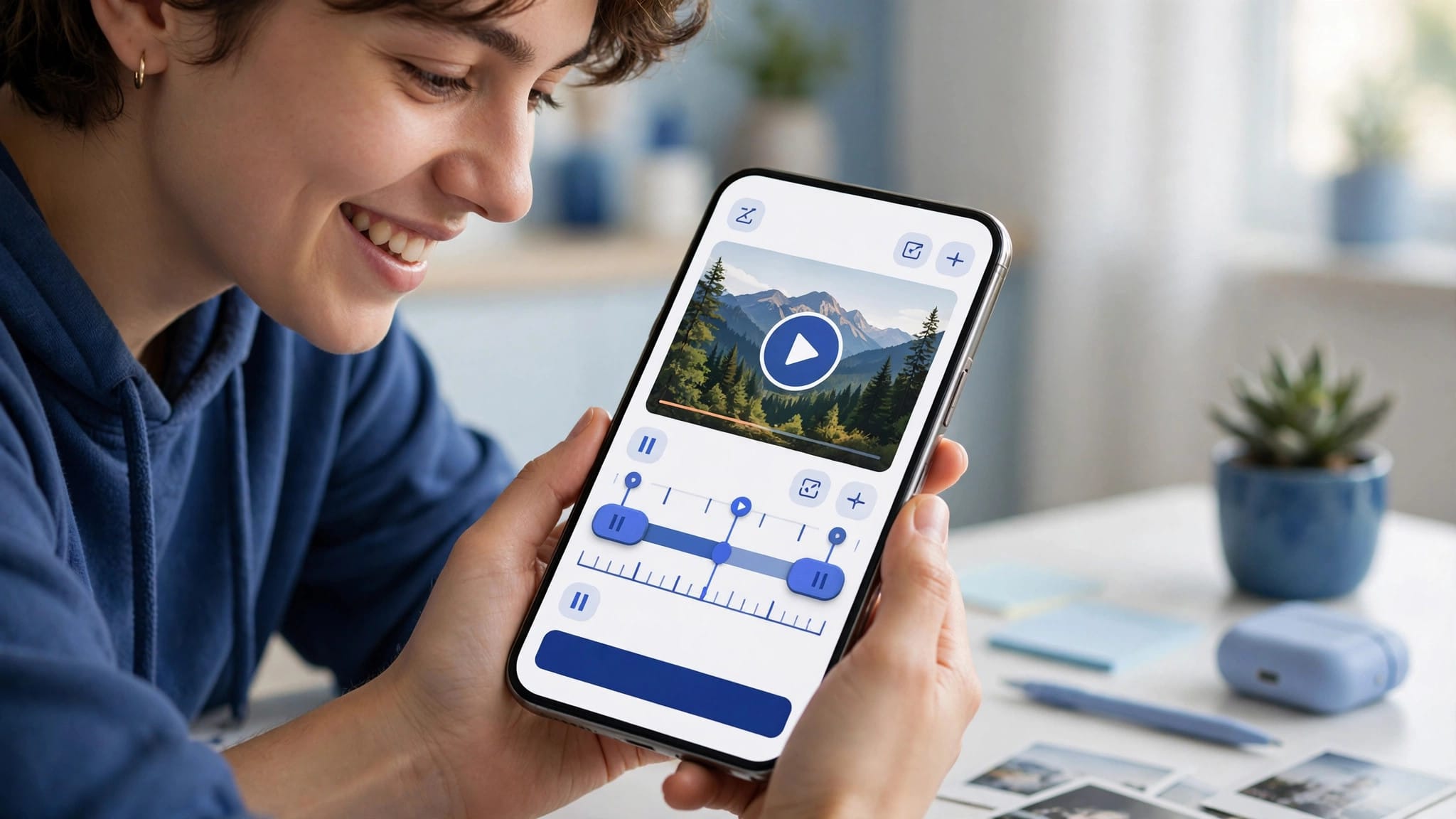
Tap New project → select a video clip from your camera roll → tap Add. You’re now looking at the timeline: your clip sits on it, and the preview plays above. This timeline is home base — everything you do happens here.
Try it now: press play. That’s your raw material. Everything from here makes it better.
Step 2: Trim the Boring Parts (The 80% Skill)
Trimming is the single most important editing skill. Most beginner videos are 3x longer than they should be.
To trim: tap your clip on the timeline → drag the white handles at either end inward. The grayed-out part gets cut. To split: move the playhead (the white vertical line) to where you want a cut → tap Split. Now you have two clips — delete the boring middle one by selecting it and tapping Delete.
The beginner rule: cut everything that isn’t interesting. Dead air at the start? Gone. The 5 seconds of you fumbling with the camera? Gone. A tight 30 seconds beats a rambling 2 minutes every single time.
Step 3: Add Text
Tap Text → Add text → type something. Drag it where you want it on screen, pinch to resize. In the text panel you can change fonts, colors, and add animations (try In animation → Typewriter for a classy entrance).
Two beginner text tips: (1) Keep it short — 3–6 words max per text box, because walls of text don’t get read on small screens. (2) Give text an entrance and exit animation; static text that pops in and out looks amateur.
Step 4: Add Music
Tap Audio → Music → browse or search. Pick something that matches your video’s energy. Once added, the music appears as a green bar under your video. Drag its ends to fit your video length, and use Fade out (tap the audio → Fade) on the last second so it doesn’t end abruptly.
Copyright note: trending sounds inside CapCut are generally fine for TikTok/Reels/Shorts posted from those apps. For YouTube, stick to royalty-free — CapCut’s “Vlog” and “Travel” music collections are safe bets.
Step 5: Add One Effect (Just One)
Beginners drown their first videos in effects. Don’t. Pick ONE: tap Effects → Video effects → try something subtle like a light leak or a gentle zoom (Camera in). Apply it, watch it back. If it enhances the video, keep it. If you notice the effect more than the video, remove it.
As you grow, explore our velocity edit tutorial and keyframes guide — but master the basics first.
Step 6: Export Your Video
Tap the export arrow (top right) → set Resolution to 1080p and Frame rate to 30 → tap Export. CapCut renders your video and saves it to your camera roll. Done — you just edited a video.
Export settings that matter: 1080p/30fps is the sweet spot for social media (small file, looks great). Use 4K only if your source footage is 4K and the platform supports it. Our export settings guide covers every option in depth.
The CapCut Interface Tour (60 Seconds)
Lost in the buttons? Here’s the map: top is the preview — what your video looks like right now. Bottom is the timeline — your clips laid left to right in time. The toolbar (under the preview) holds the verbs: Split, Speed, Animation, Effects, Filters, Adjust. Right side / long-press menus hold the nouns: the properties of whatever’s selected. You only ever need to know: select something on the timeline, then look at the toolbar — the options shown are the things you can do to it. Everything else is decoration until you need it.
Your First Week Practice Plan
Don’t binge tutorials — edit daily instead. Day 1: this tutorial — one finished video. Day 2: re-edit the same video, but better trimmed. Day 3: add transitions between every cut (transitions guide). Day 4: try a photo template with your camera roll. Day 5: add auto captions to a talking clip. Day 6: attempt your first velocity edit. Day 7: rewatch day 1’s video and laugh — then notice exactly what improved. That’s the whole curriculum: one video a day, one new technique at a time. Consistency beats intensity every single time.
7 Beginner Mistakes to Avoid
1. Too long. Cut harder. Then cut again. 2. Effect overload. One effect per video until you’re intermediate. 3. Ignoring audio. Bad audio kills good video — if your clip’s sound is windy/mumbly, mute the clip and let music carry it. 4. Tiny text. If you can’t read it on your phone at arm’s length, it’s too small. 5. No hook. The first 2 seconds decide everything — start with your most interesting moment, not a logo intro. 6. Vertical video exported horizontal. Shoot and edit 9:16 for TikTok/Reels/Shorts. 7. Never finishing. Done beats perfect. Export it, post it, make the next one better.
What to Learn Next
You now know the core loop: trim → text → music → effect → export. Every edit you’ll ever make is a fancier version of this. When you’re comfortable, level up in this order: transitions (our transitions guide), then speed/velocity, then keyframes, then auto captions. Each one builds on the last — don’t skip ahead.
FAQs
Is CapCut good for beginners?
It’s the best beginner editor available: free, intuitive, and powerful enough that you won’t outgrow it for a long time. The skills transfer to any editor.
Is CapCut free?
Yes — the core editor is completely free. Some premium effects and templates need CapCut Pro (or the modded version with Pro unlocked).
How long does it take to learn CapCut?
The basics (this tutorial) take 20 minutes. Comfortable editing takes about a week of regular use. Advanced techniques like keyframes take a few weeks. You’ll keep discovering features for months.
Can I edit on my computer?
Yes — CapCut has free desktop apps for Windows and Mac with the same core workflow. See our CapCut for Mac guide.
Why is my exported video blurry?
Almost always the export settings: make sure Resolution is 1080p (not 720p or lower) and check your source footage quality. Our export settings guide troubleshoots every cause.
Do I need to pay for music in CapCut?
No — CapCut’s built-in music library is free to use in your edits. Just be mindful of platform copyright rules for YouTube, where Content ID can flag commercial tracks even from in-app libraries.
Conclusion
That’s your first edit: trim the boring parts, add text, add music, one effect, export. Twenty minutes, five skills, one finished video. Now make ten more — that’s the real tutorial. Each one will be better than the last, and in a month you’ll wonder why this ever felt complicated. The gap between beginner and good isn’t talent or gear; it’s ten finished videos.