CapCut Desktop vs Mobile: Which One Should You Use?
The Real Question Isn’t Which Is Better
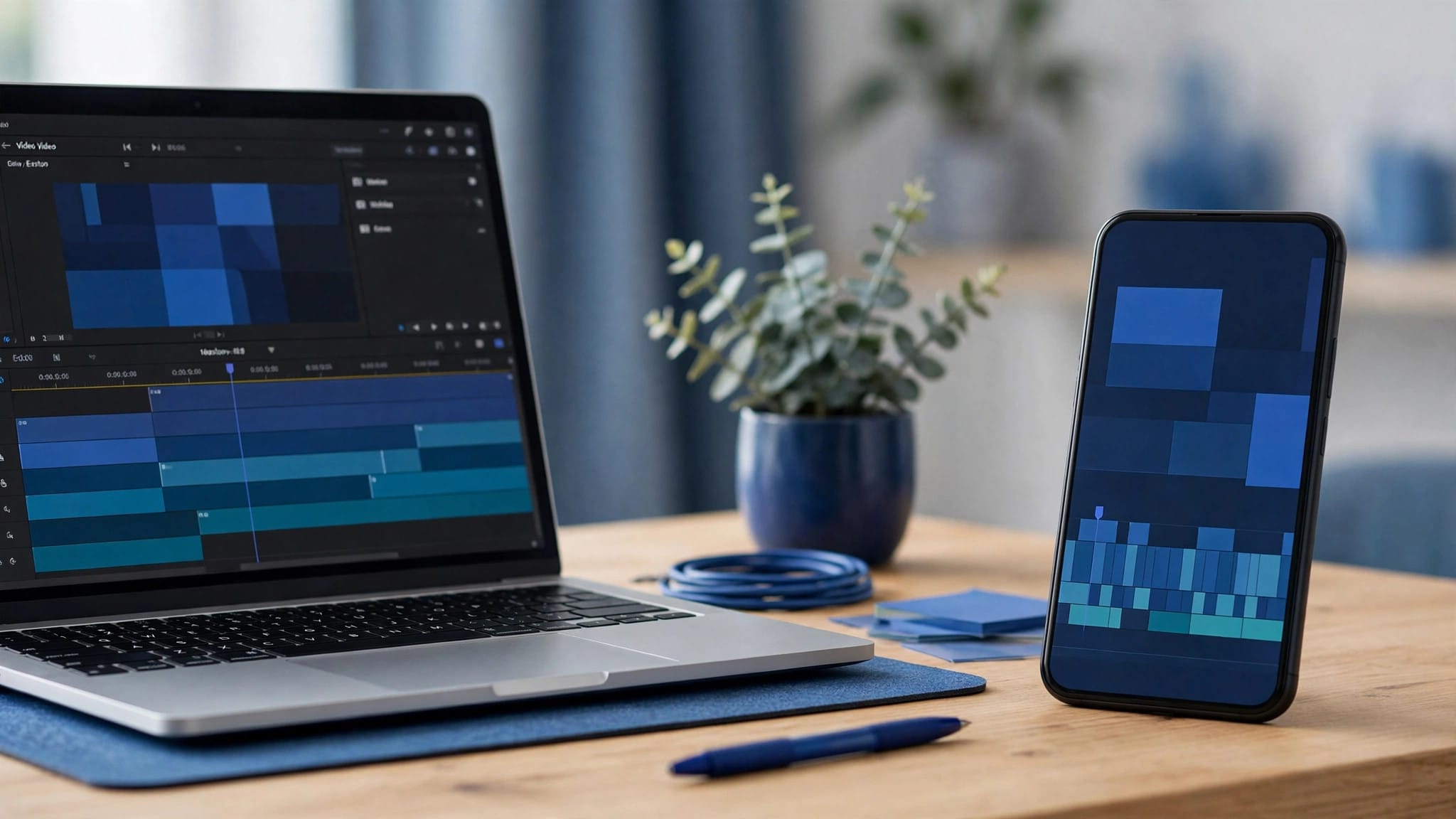
CapCut desktop vs mobile isn’t a specs battle — it’s a workflow question. The two versions share the same engine and account, but they’re optimized for opposite jobs: mobile for speed and trends, desktop for precision and scale. Most serious creators end up using both. This guide compares them honestly so you can pick the right tool per project — and stop wondering if you’re editing on the wrong one.
Feature Comparison
Timeline editing: Desktop wins clearly. Bigger canvas, more visible tracks, frame-precise trimming with a mouse, and JKL-style shuttle controls. Mobile’s timeline is cramped by physics — fine for 3 clips, painful for 30.
Templates: Mobile wins by a mile. The template ecosystem lives on phones — new viral templates appear on mobile weeks before (or never on) desktop. If templates are your workflow, mobile is home.
Effects library: Roughly parity, with mobile getting trendy effects first. Desktop gets the same library eventually, plus finer parameter control with sliders instead of fat-finger dragging.
Keyframes: Desktop wins on precision — mouse-drawn curves beat touchscreen every time. Our keyframes tutorial works on both, but you’ll enjoy it more on desktop.
Auto captions: Both excellent; desktop edges ahead with easier batch editing of caption text.
Speed/velocity: Same tools, desktop more precise. The velocity technique is identical — the mouse just makes curve-shaping less fiddly.
Export: Desktop wins — faster rendering, more codec/format options, better batch export. Mobile export is fine for single social posts.
Capture: Mobile wins — shoot and edit on one device, no transfers, no friction.
Speed Test: Which Is Faster?
For a 15-second reel: mobile, by a lot. Shoot → template → swap clips → export, all in one device, under 5 minutes. Desktop can’t touch this loop.
For a 3-minute YouTube video: desktop, by a lot. Multi-track timeline, precise cuts, keyboard shortcuts, and a big preview monitor compound into hours saved.
For a 60-second short: toss-up. Mobile if it’s template/trend-driven; desktop if it’s original/precision-driven.
The Template Gap (Mobile’s Killer Advantage)
This deserves its own section because it decides the question for many creators: CapCut’s template culture is mobile-native. Viral templates launch on phones, spread through TikTok links, and often never come to desktop — or arrive months late, broken, or region-shifted. If your content strategy is “ride every trend,” mobile isn’t just better, it’s mandatory. Desktop users can still watch trends and rebuild them manually, but that’s a different (slower) workflow.
The Precision Gap (Desktop’s Killer Advantage)
Conversely, anything requiring precision belongs on desktop: multi-layer composites, exact keyframe animation, long-form pacing, color work, and audio mixing. The mouse, the keyboard shortcuts, and the screen real estate aren’t luxuries — they’re the difference between fighting the tool and flowing. Creators who “graduated” to desktop universally cite the timeline as the reason they never went back for serious work.
Export Quality Compared
Same project, both platforms: desktop exports render faster and offer more control — higher bitrates, more codecs, batch queues. For phone-shot social content at 1080p, the visible difference is negligible; both look identical on TikTok. Where desktop pulls ahead: 4K long-form (faster, fewer artifacts at high bitrates), HDR pipelines (better tone mapping controls), and bulk work (export 10 videos overnight unattended). If you only post 30-second reels, export quality is not a reason to switch. If you’re building a YouTube library, it is.
Learning Curve: Which Is Easier to Master?
Mobile is easier to start — everything’s thumb-reachable, templates hold your hand, and you can finish a video in your first session. Desktop is easier to master — shortcuts, precision, and screen space compound your speed month after month. The pattern: mobile gets you to “good” in a week; desktop gets you to “great” in six months. Beginners should start mobile (momentum matters more than precision early); anyone editing weekly for 3+ months should add desktop to the mix.
Can You Use Both Together?
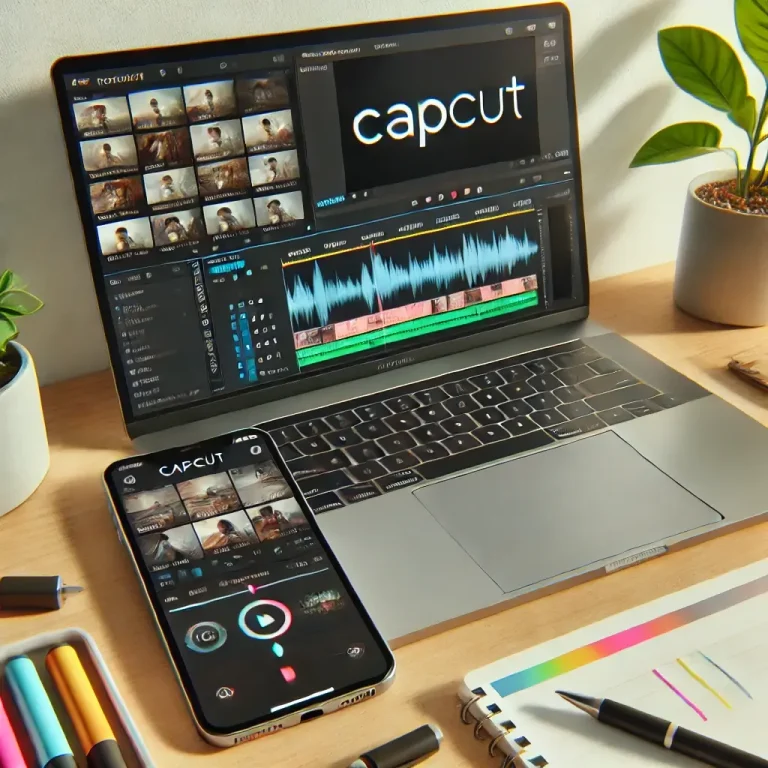
Yes — and you should. Sign into the same account on both: cloud projects, templates, and Pro status sync. The power workflow: capture and rough-cut on mobile (shoot it, template it, get the idea down while it’s fresh), then refine on desktop (precision trims, keyframes, captions, color, export). Or reverse: build the complex project on desktop, then do trend-jacking variants on mobile. The sync isn’t perfect — mobile-only effects sometimes don’t translate — but for 90% of projects it just works.
System and Cost Reality Check
Mobile: free, runs on any recent phone, always with you. Desktop: free app, but wants a decent computer (8 GB RAM minimum, Apple Silicon or equivalent). Neither needs CapCut Pro for the core workflow — Pro only gates premium effects on both. (Android users wanting Pro free: CapCut Mod APK.)
Real Creator Setups (Pick Your Fighter)
The trend machine: phone only, 50+ saved templates, posts 2x daily. Lives in the Templates tab. Desktop? Never opened it. This creator wins on volume and timing.
The YouTuber: desktop primary, phone for B-roll capture and Shorts repurposing. Timeline measured in minutes, not seconds. Keyboard shortcuts are muscle memory.
The hybrid pro: shoots on phone, rough-cuts on phone during downtime, refines on desktop in focused sessions, exports both long-form and cut-down Shorts from one project. This is the endgame setup — and it’s the one most full-time creators land on within a year.
The minimalist: one device, one app, no excuses. Phone-only or laptop-only by choice — constraints breed creativity, and plenty of successful creators never touch the other platform.
So Which Should YOU Use?
Use mobile if: you post daily short content, live on templates and trends, shoot on your phone, or edit in stolen moments (commute, couch, queue).
Use desktop if: you edit videos over 2 minutes, do client work, need precision keyframes/compositing, batch-produce content, or your eyes hurt squinting at timelines.
Use both if: you’re serious. Mobile for capture and trends, desktop for craft and long-form. One account, two tools, zero friction.
FAQs
Is CapCut desktop free?
Yes — the desktop apps (Windows and Mac) are free, same as mobile. See our CapCut for Mac guide for macOS specifics.
Do mobile and desktop have the same features?
Nearly — same core editor, same account sync. Mobile leads on templates and trendy effects; desktop leads on precision, shortcuts, and export options.
Can I start a project on my phone and finish on my computer?
Yes, via cloud sync with the same account on both. Keep both apps updated; mobile-only effects may not carry over.
Which is better for YouTube videos?
Desktop — timeline space, precision, and export control matter enormously past the 2-minute mark.
Which is better for TikTok?
Mobile — templates, trends, and shoot-to-post speed are all phone-native.
Does CapCut desktop need internet?
For cloud features and templates, yes. Core timeline editing works offline once the app and assets are loaded.
Will my Pro subscription work on both?
Yes — CapCut Pro is account-based, not device-based. One subscription unlocks premium effects on mobile and desktop together.
Conclusion
Stop asking which is better and start asking which job you’re doing. Trends and speed → mobile. Precision and scale → desktop. The creators winning right now aren’t picking sides — they’re using the phone in their pocket and the computer on their desk as one workflow, synced through a single account. That’s the actual answer to CapCut desktop vs mobile: yes.